
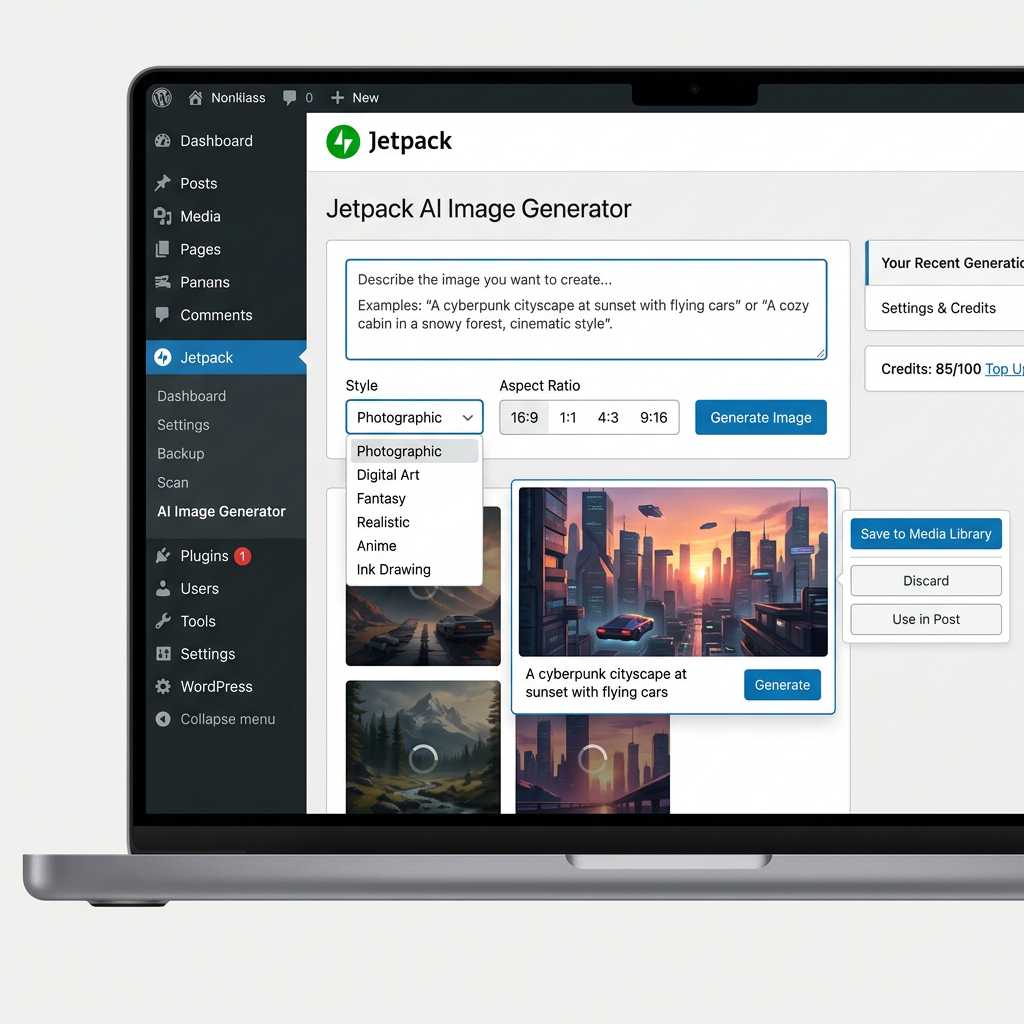
Creating high-quality visuals for your self-hosted site just got incredibly easy. If you are wondering how to use the WordPress.com AI image generator on your WordPress.org website, you are in the right place. Finding the perfect featured image or blog graphic used to mean spending hours scouring premium stock photo sites. Now, you can generate custom, high-quality images directly within your WordPress block editor using artificial intelligence.
Because the AI image generator is inherently a WordPress.com feature, integrating it into a self-hosted WordPress.org site requires a bridge. That bridge is the Jetpack plugin.
What You Need to Get Started
Before you can start prompting your way to beautiful visuals, you need to ensure you have a few basic tools in place:
- A self-hosted WordPress.org website: Ensure your WordPress core is updated to the latest version.
- The Jetpack plugin: This powerful tool connects self-hosted sites to exclusive WordPress.com cloud features.
- A WordPress.com account: You will need a free account to authenticate your Jetpack connection.
- Jetpack AI enabled: Keep in mind that generating images may require the Jetpack AI Assistant upgrade, depending on your current plugin tier.
Step-by-Step Guide
Once your prerequisites are sorted, follow these simple steps to generate AI images directly from your dashboard:
- Install and Connect Jetpack: Navigate to Plugins > Add New in your WordPress dashboard. Search for “Jetpack,” install it, and follow the on-screen prompts to link it to your WordPress.com account.
- Open the Block Editor: Go to any post or page where you want to add a graphic and open the Gutenberg block editor.
- Insert an Image Block: Click the + icon to add a new block and select the standard Image block.
- Select the AI Option: With Jetpack connected and active, you will see a new option inside the Image block placeholder labeled Generate with AI (often accompanied by a sparkle icon). Click on it.
- Write Your Prompt: Describe the exact image you want. Instead of typing “a dog,” type “a golden retriever sitting in a sunlit park wearing sunglasses, photorealistic style.”
- Generate and Insert: Hit generate. The AI will provide a few variations. Click your favorite one, and it will automatically save to your media library and drop right onto your page.
Tips for the Best AI Images
- Be highly specific: Detail the lighting, color palettes, and background scenery.
- Include art styles: Tell the AI if you want a watercolor painting, a 3D digital render, or a hyper-realistic photograph.
- Refine and retry: If the first batch isn’t quite right, tweak your text prompt and generate again.
By leveraging Jetpack, using the WordPress.com AI image generator on your WordPress.org website is a seamless process. Say goodbye to generic stock photos and elevate your content with completely unique, custom-generated imagery!