
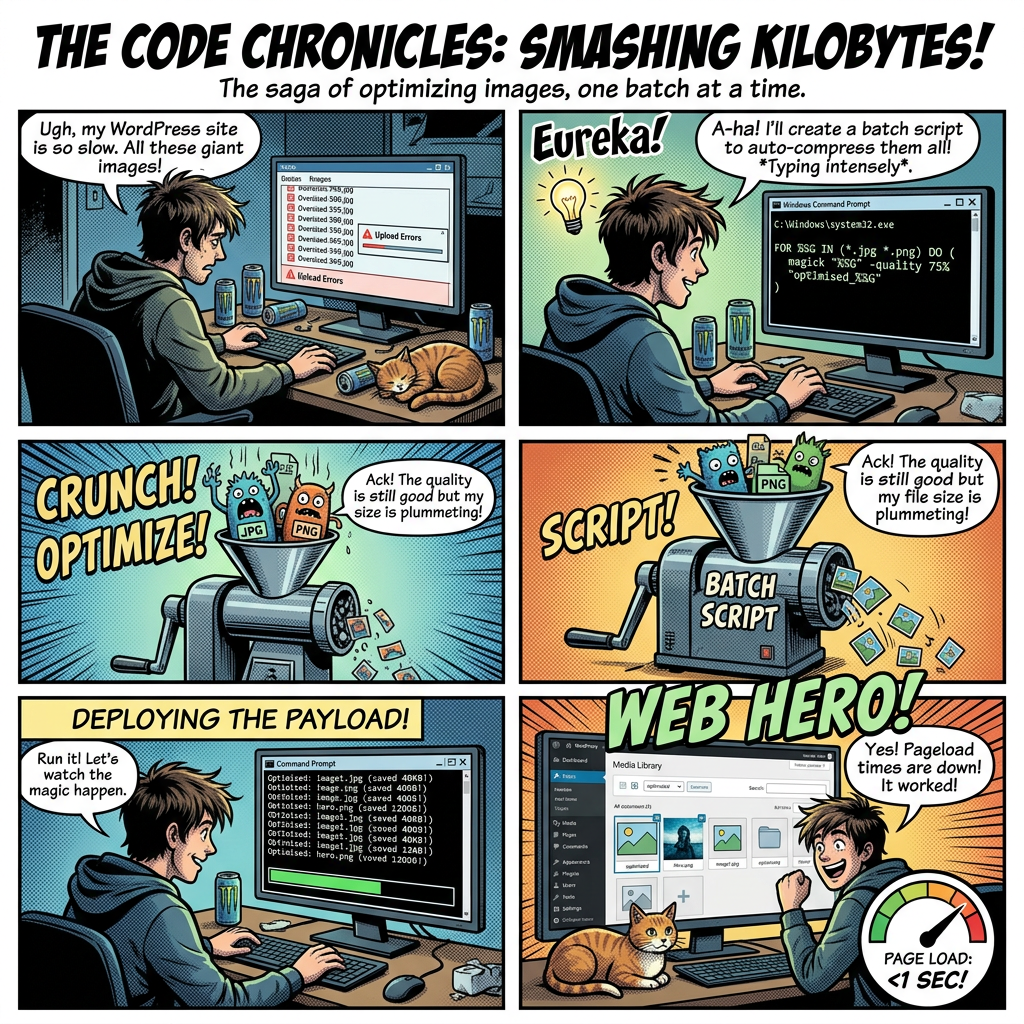
Managing a massive WordPress website means dealing with a massive wp-content/uploads directory. Over time, default configurations store every single original image alongside a mountain of auto-generated thumbnails. Running optimization loops across all these files at once can spike your CPU and take hours to finish.
The solution requires a three-step command-line workflow: using high-speed native Windows system tools to copy base images without size variants, running local optimization loops via ImageMagick, and executing a targeted final sync to copy over all missed branding elements like logos and headers without resizing them.
By utilizing Robocopy (Robust File Copy) and ImageMagick instead of slow text-based batch loops, you can parse, filter, and optimize thousands of files in seconds. Here is the definitive guide using three distinct batch files to safely manage your WordPress media library.
Batch File 1: Copy Base Images Only (Skipping Thumbnails)
WordPress automatically generates multiple cropped variations for every media file. When optimizing your library offline, processing these redundant thumbnails wastes local storage and computing power.
This high-speed script copies only your original, full-resolution files, utilizing native kernel-level exclusion filters to ignore thumbnail sizes like -300x300.jpg or -768x1024.png.
@echo offsetlocal EnableExtensions DisableDelayedExpansion:: 1. SET YOUR FOLDER PATHS HERESET "source_dir=C:\path with spaces\wordpress\wp-content\uploads"SET "output_dir=C:\path with spaces\optimized_backup":: 2. RUN HIGH-SPEED ROBOCOPY (Copies originals, blocks WP thumbnails)robocopy "%source_dir%" "%output_dir%" *.jpg *.jpeg *.png *.webp /S /XO /XF *-[0-9]x[0-9]*.* *-[0-9][0-9]x[0-9][0-9]*.* *-[0-9][0-9][0-9]x[0-9][0-9][0-9]*.* *-[0-9][0-9][0-9][0-9]x[0-9][0-9][0-9][0-9]*.* /R:1 /W:1echo STEP 1: BASE IMAGE COPY COMPLETE!pauseexit /b
How This Script Works:
- Thumbnail Filtering (
/XF): Blocks file patterns matching standard WordPress width-by-height dimensions, keeping the copy clean. - Structure Preservation (
/S): Recursively scans and creates the exact year/month nested folder structure. - Delta Logic (
/XO): Skips files that are already identical in the destination folder, allowing you to resume interrupted tasks safely.
Batch File 2: Optimize Staged Images with ImageMagick
Once your original files are safely staged, it is time to optimize them.
True lossless compression strips invisible metadata profiles, cleans up web structures, and sets maximum compression levels without lowering image dimensions or introducing pixel artefacts. To automate this across thousands of files, we leverage ImageMagick via the command line.
First, download and install ImageMagick for Windows (ensuring you tick “Add application directory to your system path”). Then, run the following batch script to process the staged folder in-place:
@echo offsetlocal EnableExtensions DisableDelayedExpansion:: 1. TARGET THE FOLDER CONTAINING YOUR STAGED IMAGES FROM STEP 1SET "target_dir=C:\path with spaces\optimized_backup"echo Starting Batch ImageMagick Processing...echo Resizing oversized elements (Max 1920x1080), stripping profiles, and optimizing...:: 2. PROCESS JPEGs (Cap size at 1920x1080 if larger, strip metadata, progressive display)for /f "delims=" %%I in ('dir "%target_dir%\*.jpg" "%target_dir%\*.jpeg" /b /s /a-d') do ( magick "%%I" -resize "1920x1080>" -strip -interlace Plane -quality 100 "%%I"):: 3. PROCESS PNGs (Cap size at 1920x1080 if larger, strip metadata, max level 9 compression)for /f "delims=" %%I in ('dir "%target_dir%\*.png" /b /s /a-d') do ( magick "%%I" -resize "1920x1080>" -strip -define png:compression-level=9 "%%I")echo STEP 2: IMAGE OPTIMIZATION COMPLETE!pauseexit /b
How the Size Safeguard Works:
- The
"1920x1080>"Conditional Operator: The trailing **>** (greater-than) symbol is the exact flag that prevents smaller images from expanding. ImageMagick reads this expression as: “Resize the asset only if its dimensions are larger than 1920px wide or 1080px high.” - Aspect Ratio Locking: ImageMagick automatically retains the original proportions of your photographs. A 4000x2000px wide landscape photo scales down cleanly to 1920x960px, preventing stretching or warping.
- Zero Pixel Expansion: A 400x200px button icon completely ignores this rule and skips the resizing engine, preserving its original pixel structure perfectly.
How This Script Works:
-strip: Erases non-visual EXIF tags, GPS positions, camera technical specifications, and color profiles that waste server storage space.-interlace Plane: Forces JPEG images to compress progressively, creating smoother progressive web rendering profiles.- PNG Compression Level 9: Uses the maximum non-destructive algorithmic iteration to pack PNG graphics tightly without losing quality.
Batch File 3: Copy Remaining Logos and Headers
Logos, site icons, and headers must retain 100% pixel perfection and require specialized handling. If your primary assets use specific text patterns, or if you want an absolute guarantee that no critical identity element was skipped during file filtering, this targeted script acts as your safety net to copy remaining elements unchanged.
@echo offsetlocal EnableExtensions DisableDelayedExpansion:: 1. SET YOUR FOLDER PATHS HERE (Must match previous folder structures)SET "source_dir=C:\path with spaces\wordpress\wp-content\uploads"SET "output_dir=C:\path with spaces\optimized_backup":: 2. RUN HIGH-SPEED ROBOCOPY (Natively filters logos and headers while preserving structure)robocopy "%source_dir%" "%output_dir%" *logo*.* *header*.* /S /XO /R:1 /W:1 /NDL /NFL /NJH /NJSecho STEP 3: BRANDING ASSET COPY COMPLETE!pauseexit /b
How This Script Works:
- Keyword Targeting: Snatches files containing “logo” or “header” anywhere in the name, bypassing strict size exclusions.
- Kernel Execution: Works entirely inside the native OS layer, bypassing slow text processing and dropping CPU overhead to near-zero.
- Seamless Merging: Places these critical assets back into their exact relative subdirectories, blending flawlessly with the main batch.
Final Steps: Deploying to Production
Once your final step finishes processing your optimized_backup directory, your files are completely prepared for deployment. Compress the folder into a standard .zip file, connect to your host via SFTP or cPanel File Manager, and extract it over your production wp-content/uploads folder.
To wrap things up, run a standard server utility plugin like Regenerate Thumbnails. Your host will cleanly rebuild responsive image sizes based on your newly compressed, metadata-free originals, ensuring your website remains fast, clean, and efficient.